Download languages and manage them
Fraze runs on your computer, so it needs the files for each language before it can caption or translate. It downloads them the first time you pick a language pair. After that, everything works with no internet.
Which computer are you using?
Download a language pair
Click the language pill in the top left corner.

Under Spoken language, pick the language people speak. Under Translate to, pick the language you want to read, or No translation for captions only. You can type to search.
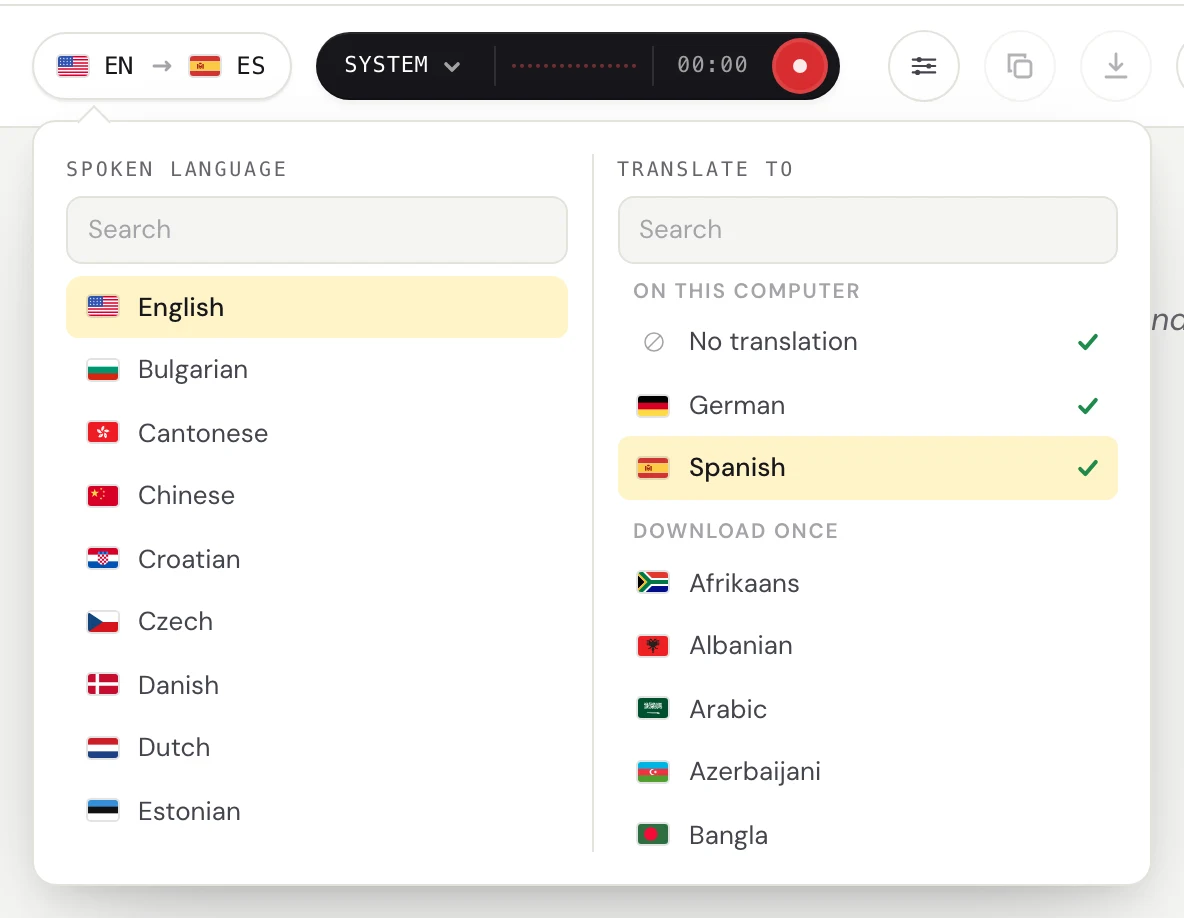
If something still needs downloading, Fraze shows what it needs and its size. Click Download, or just press the record button.
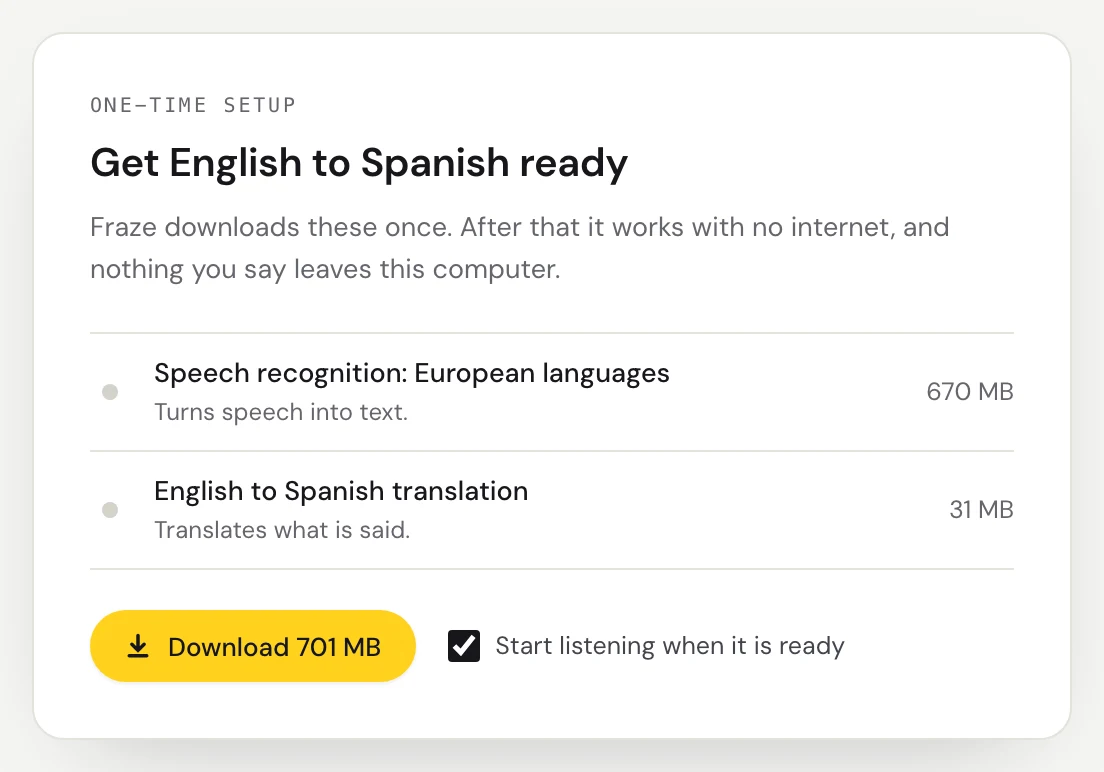
Wait for the progress bar to finish. With Start listening when it is ready checked, Fraze starts listening on its own. Click Pause to finish later, or Cancel to drop the download.
Speech recognition for the European languages is about 670 MB and downloads once for all of them. Chinese, Korean and Cantonese share one speech download, and Japanese, Vietnamese and Thai each have their own. Each translation pair adds 20 to 50 MB.
On macOS 26, some languages come from macOS
For some languages, such as Japanese, Korean, and Chinese, Fraze uses the speech model built into macOS 26. macOS downloads it the first time you start listening, and Fraze shows macOS is downloading its speech model with a percentage. It downloads once and other apps share it.
If a download fails
Fraze shows Download stopped and a Try again button. If the computer went offline, Fraze keeps what it already downloaded and picks up on its own when the connection is back.
Check that you're online.
Downloads come from huggingface.co, github.com, and Mozilla's CDN. If you use a firewall, a VPN, or a work network, make sure it doesn't block them.
Click Try again.
See and remove downloaded languages
Click the gear button in the header to open Settings.
Under Downloaded languages you see everything Fraze has downloaded, its size, and when you last used it. Click Remove, then Remove again, to free up the space.
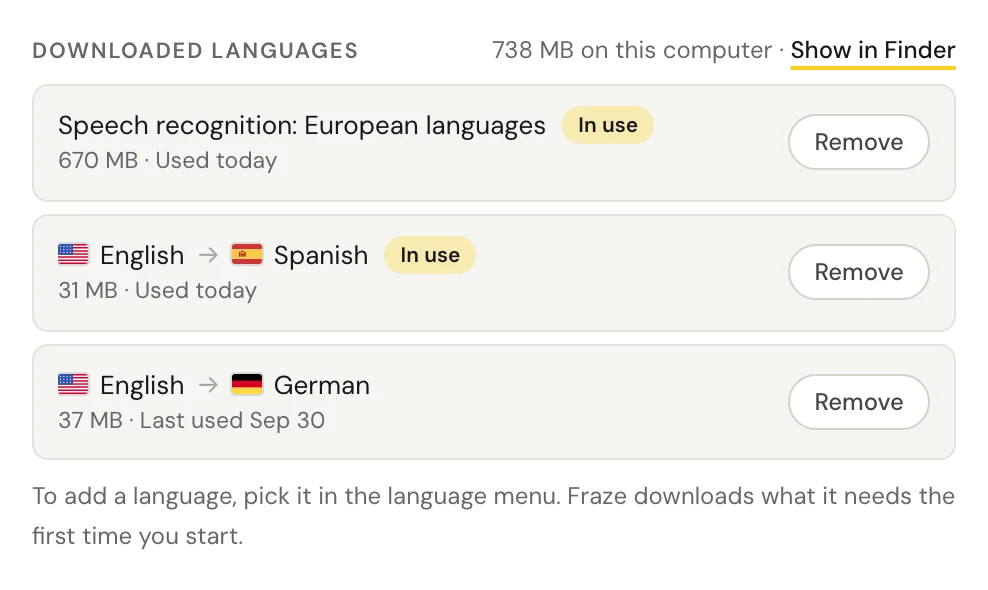
Stop listening before you remove something that's in use. If you need it again later, Fraze downloads it again.
Still stuck?
Email us from the support page, or send feedback from the app. Tell us whether you use Windows or a Mac and what you see on screen, and we'll help you sort it out.
Contact support