The short answer
To type with your voice in Windows 11, click in a text box and press Windows key + H. Voice typing opens, listens, and types what you say. It is free and built in. It also needs the internet, because Microsoft says it uses online speech recognition, which sends your voice to Microsoft to be turned into text. Say "stop listening" or press Windows key + H again to stop.
For speech to text without the internet, turn on voice access in Settings > Accessibility > Speech. After a one-time language download, Microsoft says it works offline. It replaced the old Windows Speech Recognition in Windows 11.
Both are for your own voice. To turn a Teams call, a lecture or a video into text, use Live Captions, which shows the words and keeps nothing, or Fraze, which writes them down and keeps the transcript on your computer. Nothing is uploaded.
Pick the tool by whose speech it is
| What it turns into text | Where the text goes | Internet | Cost | |
|---|---|---|---|---|
| Voice typing (Windows key + H) | Your voice, from the microphone | Into the text box you are in | Needed, it uses online speech recognition | Free, Windows 10 and 11 |
| Voice access | Your voice, plus commands to control the PC | Into the text box you are in | Only for the first language download | Free, Windows 11 |
| Live Captions (Windows key + Ctrl + L) | Anything the PC plays, and the mic if you add it | A caption bar. Nothing is saved | Only for the first language download | Free, Windows 11 |
| Fraze | Anything the PC plays, the mic, or both | Its own window, then History on your PC | Only for the first language download | 30 minutes free, then $29.99 once or $2.99 a month |
If you came here to dictate, start with voice typing. It costs nothing and writes into whatever you are working in, as does voice access. Both listen to your microphone, not to what your PC plays, and Microsoft says voice typing filters out sound from your speakers on purpose. For a call or a video, you need a tool that listens to the PC itself.
Type with your voice: voice typing
Click where the text should go
Put the cursor in a text box: an email, a document, a chat, a search bar. Voice typing only starts when the cursor is in a text box.
Press Windows key + H
The voice typing menu opens and starts listening. Wait for Listening..., then talk. On a touch screen, tap the microphone on the touch keyboard instead.
Say the punctuation, or let Windows add it
Say "period", "comma", "question mark" or "new line". Or select the gear in the voice typing menu and turn on Automatic punctuation.
Fix mistakes and stop by voice
Say "delete that" to remove the last thing you said, "undo that" to undo the last change, and "stop listening" when you are done. Pressing Windows key + H again stops it too.
Word, Outlook and PowerPoint in Microsoft 365 have their own Dictate button as well. Microsoft says it needs a microphone and a reliable internet connection.
Voice typing settings, languages and privacy
- The gear in the voice typing menu holds the settings. The voice typing launcher starts it quickly from a text box. Wait time before acting sets how long it waits before carrying out a command. The others are Automatic punctuation, Filter profanity and the default microphone.
- Microsoft lists 46 voice typing languages and regional versions, among them English, Spanish, French, German, Portuguese, Russian, Hindi, Japanese, Korean and Chinese. To dictate in another language, add it under Settings > Time & language > Language & region, then switch to it with Windows key + Spacebar.
- Your voice goes to Microsoft. Its privacy page says online speech recognition sends voice data to Microsoft to create the text. It also says Microsoft does not store, sample or listen to recordings without your permission. Sharing voice clips to improve the service is optional, and the voice typing settings link to where you start or stop it.
- Microsoft says that with Online speech recognition turned off, under Settings > Privacy & security > Speech, only features that work on the device are left. Voice typing is not one of them.
- On a Copilot+ PC, fluid dictation fixes grammar, punctuation and filler words as you speak, in English. Microsoft says that part runs on small language models on the device. Say "undo that" to get your own words back.
- Voice typing hears only you. Microsoft says it suppresses audio coming from your speakers, so it will not type out a video or the other side of a call.
Speech to text with no internet: voice access
Turn it on
Go to Settings > Accessibility > Speech and turn on Voice access, or search for voice access from Start. It is in Windows 11, version 22H2 and later.
Download your language once
Pick a language and select Agree and continue. Voice access downloads the files it needs to recognize speech on the device. That one step needs an internet connection.
Pick a microphone and talk
When the voice access bar appears at the top of the screen, click into a text box and speak. Say "voice access sleep" to pause it and "voice access wake up" to carry on, or press Alt + Shift + B.
Voice access does more than voice typing. You can open apps, click buttons and edit text by voice. It covers fewer languages. Microsoft's setup page lists English, Spanish, French, German, Italian, Japanese and Chinese. Its settings let you add names and unusual words to its vocabulary, and on a Copilot+ PC fluid dictation works here too, in English.
Windows Speech Recognition, the older tool, has been replaced. Microsoft says voice access took its place in Windows 11, version 22H2 and later, in September 2024, and that it is still in older versions of Windows, such as Windows 10.
When voice typing is not working
- Nothing happens when you press Windows key + H. Click into a text box first. Voice typing does not start anywhere else.
- It opens but types nothing. Check the internet connection, then check that Online speech recognition is on under Settings > Privacy & security > Speech.
- It does not hear you. Pick the right microphone in the voice typing settings, and check that microphone access is on under Settings > Privacy & security > Microphone.
- The words come out in the wrong language. Voice typing follows your input language. Switch it with Windows key + Spacebar.
- A message tells you to use voice access. Voice access is already running, and it types too. Dictate with it, or turn it off first.
When the speech is not yours: calls, videos, a lecture
Windows has one built-in tool for this: Live Captions. Press Windows key + Ctrl + L and it captions anything the PC plays, on the device, in 10 languages. It is good for following along, but it is not a transcript. Microsoft says generated captions are not stored anywhere, so when the call ends, the words are gone. The live captions guide linked at the foot of this page covers its settings and fixes.
Fraze is a Windows and Mac app for the rest. It listens to system audio, which means a Teams, Zoom or Meet call in any app, a YouTube video or a lecture stream. It can also listen to your microphone, or to both at once. Words appear while the speaker talks and settle when they pause. A small captions window can stay above your other windows. Fraze keeps each finished session in History, ready to copy or save as a text file.
It all runs on your PC. No audio or text leaves it, no bot joins the call, and once a language is downloaded it works with the internet off.
Write down a call or a video with Fraze
Install Fraze
Download it for Windows 11. No account is needed, and the first 30 minutes are free.
Choose what it listens to
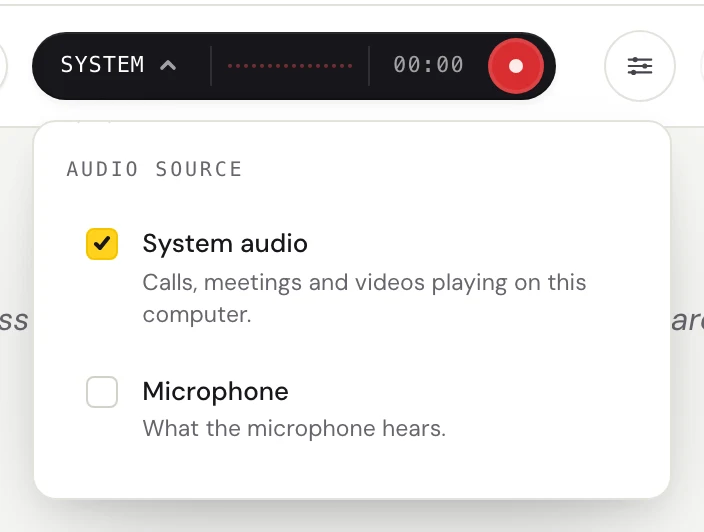
Click the dark audio pill. Check System audio for a call or a video playing on your PC, Microphone for people in the room, or both, which the pill shows as Mix.
Pick the spoken language
Click the language pill, set Spoken language, and set Translate to No translation. The first time, Fraze downloads that language. After that it needs no internet.
Press Start listening
Ask the people on the call first. Then start, and the words appear as they are spoken. The captions button turns Fraze into a small window you can keep above the call.
Keep the text
When you stop, Fraze saves the session in History on your computer. Copy it, save it as a .txt file, or delete it.
What to expect from Fraze, honestly
- It does not type into other apps and has no voice commands. To write an email by voice, use voice typing or voice access. To use Fraze text somewhere else, copy it from History.
- It is live only. It cannot open an audio or video file. You can play a recording and let it listen, at the speed of the recording.
- The saved text is plain lines, with no speaker names and no timestamps. Fraze keeps no audio.
- On Windows it hears 25 European languages, among them English, Spanish, French, German, Italian, Portuguese, Polish, Dutch and Ukrainian, plus Chinese, Japanese, Korean, Cantonese, Vietnamese and Thai. It does not hear Hindi or Arabic. Voice typing covers Hindi.
- It can also translate what it hears into English and many other languages, if you want that.
- The captions window stays above other windows, but not over an app in full screen.
- It needs Windows 11 on x64 with a 4-core AVX2 processor and 8 GB of memory. It does not run on Windows 10.
What it costs
Voice typing, voice access and Live Captions come free with Windows. Fraze gives you the first 30 minutes free, with no account and no card. After that it is $29.99 once or $2.99 a month, both unlimited. The work happens on your PC, so there is no per-minute charge, and a two-hour lecture costs the same as a short call.
Questions
How do I turn on speech to text in Windows 11?
Click into a text box and press Windows key + H. That starts voice typing, which types what you say and needs an internet connection. For speech to text without the internet, turn on voice access in Settings > Accessibility > Speech.
Does Windows voice typing work offline?
No. Microsoft says voice typing uses online speech recognition and needs an internet connection. Voice access and Live Captions work offline after a one-time language download.
What happened to Windows Speech Recognition?
Microsoft listed it as deprecated, no longer being developed, in December 2023, and says voice access replaced it in Windows 11, version 22H2 and later, in September 2024. It is still in older versions of Windows, such as Windows 10.
Is there speech to text on Windows 10?
Yes. Windows key + H starts dictation on Windows 10 too, and it needs the internet. Voice access, Live Captions and Fraze need Windows 11. Microsoft ended support for Windows 10 on October 14, 2025.
What is the best free dictation software for Windows?
Start with the two that come with Windows. Voice typing is free and covers 46 languages and regional versions, but needs the internet. Voice access is free and works offline, in fewer languages. Fraze is not a dictation app. It writes down speech from calls, videos and the room, and does not type into other apps.
Can Windows turn a video or a Teams call into text?
Live Captions shows the words of anything your PC plays, but Microsoft says the captions are not stored. Voice typing filters out sound from the speakers, so it will not type out a call. To keep a transcript, Fraze writes down what the PC plays and saves it on your computer.
Can Fraze type into Word or an email?
No. Fraze writes in its own window and keeps each session in History. Copy the text from there and paste it, or save it as a .txt file.