The short answer
To type by talking, use Dictation, which is built into macOS and free. Open the Apple menu, then System Settings, then Keyboard, and turn on Dictation. Click where the text should go, press the Microphone key or Fn-D, and speak. Press Escape when you are done.
Dictation types your own voice at the cursor. When the speech comes from somewhere else, such as a Zoom call, a lecture or a video, you need a different tool. Live Captions shows the words as they play, and Notes keeps a transcript of a recording you make in it.
Fraze is a Mac app for that second job. It writes down what your Mac plays, or what the microphone hears, and keeps the text in a history on your Mac. No audio or text leaves your computer, and after the first language download it works with Wi-Fi off. It does not type into other apps.
Turn on Dictation and use it
Turn it on
Open the Apple menu, then System Settings, then Keyboard. Scroll to Dictation, turn it on, and click Enable. If macOS asks about sharing audio recordings to improve Siri and Dictation, Not Now keeps them off.
Set the language and the microphone
In the same place, click Edit next to Languages to pick the language and region you speak. Microphone source chooses which microphone listens. Automatic picks the one your Mac thinks you are most likely to use.
Click where the text should go, then start
Press the Microphone key in the top row if your keyboard has one, press Fn-D, or choose Edit, then Start Dictation. Speak when the cursor pulses or you hear a tone. It works in any app where you can type.
Stop
Press Escape, the Microphone key or your shortcut. Dictation also stops by itself after 30 seconds without speech. There is no limit on how long you can talk.
Shortcuts and spoken commands worth knowing
- A short press of the Microphone key starts Dictation. Press and hold it and you get Siri instead.
- To change the shortcut, open Keyboard settings, go to Dictation and pick one from the Shortcut menu. Customize lets you press your own keys, such as Option-Z.
- Say "comma", "question mark" or "exclamation mark" for punctuation. In English and some other languages, Auto-punctuation adds commas, periods and question marks for you.
- Say "new line" for one Return and "new paragraph" for two.
- Say "caps on" to put the next phrase in title case, "all caps" for one word in capitals, and "numeral" to write the next phrase as a number.
- On a Mac with Apple silicon you can keep typing while Dictation is on. It waits while you type and listens again when you stop.
- A word underlined in blue had more than one likely spelling. Click it to pick another.
Does Mac dictation work offline?
In many languages, yes. Apple's macOS Feature Availability page lists about 20 languages for on-device dictation, among them English, Spanish, French, German, Italian, Brazilian Portuguese, Russian, Japanese, Korean and Mandarin, and notes that they need a download of speech models. Dictation covers more than 30 languages in all, so some are left off that list, such as Polish, Czech, Greek and Ukrainian.
You do not have to guess. With Dictation on, Keyboard settings say under Dictation whether what you dictate is processed on your Mac and not sent to Siri servers. That note covers writing messages and notes, not dictating into a search box. Apple's privacy page says that otherwise, what you say is sent to Apple and processed there.
If you once agreed to share recordings, you can stop: open Privacy & Security in System Settings, then Analytics & Improvements, and turn off Improve Siri & Dictation.
On macOS 27 with Apple Intelligence, Apple says an on-device model also improves spelling, punctuation and capitalization. That is in English only, on Macs with M3 or later and at least 12 GB of memory.
Dictation or Voice Control
Voice Control is the accessibility feature for running the whole Mac by voice. You say "Open Mail", "Scroll down" or "Click Done", and it also dictates text, with a spelling mode for passwords and web addresses. Turn it on in System Settings, then Accessibility, then Voice Control.
Apple says the first time needs the internet for a one-time download, and after that Voice Control works without a connection. Apple lists it in 12 languages. When Voice Control is on, standard Dictation is not available, so pick one.
If Dictation does not work
- Check that Dictation is on in Keyboard settings, set to the language and region you speak.
- Check the shortcut. Holding the Microphone key opens Siri, and a short press starts Dictation.
- Check the microphone. Pick it as the Microphone source in Keyboard settings, and raise its input volume in Sound settings, under Input.
- Keep the microphone uncovered and cut background noise. In a noisy or echoing room, a headset microphone helps.
- If your language is not on Apple's on-device list, you may need an internet connection.
- If it stops while you think, it heard 30 seconds of silence. Start it again.
When the words are someone else's
| What it listens to | Where the words end up | Worth knowing | |
|---|---|---|---|
| Dictation | Your voice, through the microphone | Typed at your cursor, in any app | Built for one speaker: you |
| Live Captions | Your Mac's audio or the microphone, one at a time | A caption window. Apple's guide gives no way to save it | Apple silicon, 8 languages, processed on the Mac |
| Notes recording | A recording you make in a note | A transcript in the note, next to the audio | M1 or later, Mac set to one of 10 languages |
| Phone app call recording | Calls in the Phone app | A recording in Notes, with a transcript in some languages | Both people hear a notice |
| Fraze | Your Mac's audio, the microphone, or both | A live window, then History, to copy or save as text | Stays on your Mac. 31 languages |
Dictation is built for your voice going into a document. For a Zoom call, a lecture, a podcast or a video, you want other people's words, and macOS covers parts of that.
Live Captions is the quickest way to follow along, and if it speaks your language and you only need to read, it is the right pick. The text is not kept, though. Notes and the Phone app keep a transcript, but only of a recording made in Notes or a call in the Phone app. To keep the text of a call in any app, a class or a video, that is what Fraze does, including in languages Apple does not list for Live Captions or Notes, such as Polish, Dutch or Swedish.
Write down a call or a lecture with Fraze
Install Fraze
Download it for a Mac with Apple silicon on macOS 14 or later. No account is needed.
Choose what it listens to
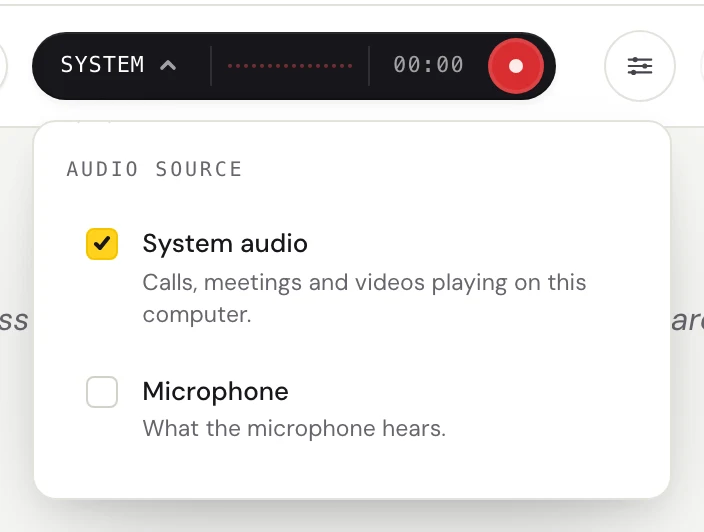
Click the dark audio pill. Check System audio for a call or a video playing on your Mac, or Microphone for a lecture or a meeting in the room. Check both, which the pill shows as Mix, to get both sides of a call.
Pick the spoken language
Click the language pill, set Spoken language, and set Translate to No translation. The first time, Fraze downloads the language files. After that it needs no internet.
Start listening
Press Start listening. Words appear while the person talks, and each line settles a moment after they pause. The captions button opens a small window that stays above your other windows.
Keep the text
When you stop, the session is saved in History on your Mac. Copy it, or save it as a text file, and paste it into your notes.
Speech becomes text on your Mac. No audio or text is uploaded, no bot joins the call, and Fraze never saves the audio. It works on a plane or with Wi-Fi off, once the language files are downloaded.
If the speaker uses another language, set Translate to and Fraze puts a translation under each line. Names and unusual words can go under Custom vocabulary in Settings, one per line.
The first 30 minutes are free, with no account and no card. After that it is $29.99 once or $2.99 a month, both unlimited. The work happens on your Mac, so there is no per-minute charge.
What Fraze does not do
- It does not type into other apps and has no voice commands. To write by talking, use Dictation.
- It cannot open an audio or video file. You can play a recording and let it listen, but that takes as long as the recording.
- There are no speaker labels, and saved text has no timestamps.
- It hears 25 European languages, among them English, Spanish, French, German, Italian, Polish and Ukrainian. It also hears Chinese, Japanese, Korean, Cantonese, Vietnamese and Thai. It does not hear Hindi or Arabic.
- The captions window stays above other windows, but not over an app in full screen.
- It needs macOS 14 or later on Apple silicon. Intel Macs cannot run it.
Questions
How do I turn on speech to text on a Mac?
Open the Apple menu, then System Settings, then Keyboard, and turn on Dictation, then click Enable. To use it, click in any text field, press the Microphone key or Fn-D, and speak. Press Escape to stop.
What is the keyboard shortcut for dictation on a Mac?
Press and release the Microphone key in the top row, if your keyboard has one. Apple also lists Fn-D. You can set your own in Keyboard settings, under Dictation, then Shortcut, or start from the menu bar with Edit, then Start Dictation.
Is there a time limit on Mac dictation?
No. Apple says you can dictate text of any length without a timeout. It stops by itself after 30 seconds with no speech, so a long pause ends it.
Is speech to text on a Mac free?
Yes. Dictation, Voice Control, Live Captions and the transcripts in Notes are all built into macOS at no cost. Fraze gives the first 30 minutes free, then costs $29.99 once or $2.99 a month.
Can my Mac write down a Zoom call or a YouTube video?
Live Captions shows the words as they play, in the languages Apple lists, but does not keep them. Fraze writes down any audio your Mac plays, keeps the text in History, and lets you copy it or save it as a text file. Nothing is uploaded and nothing joins the call.
Can Fraze type into Word, Google Docs or Slack?
No. Fraze writes in its own window, and you copy the text from there. To type by talking into any app, use Dictation.
How do I make my Mac read text out loud instead?
That is text to speech, the other direction. Open System Settings, then Accessibility, then Read & Speak, and turn on "Speak selection". Select text and press Option-Esc, and your Mac reads it out.